|
Do this process if Hammer does not configure itself.
Run Hammer from the Source SDK Launcher.
When you see the First Time Set-up message, click NO.
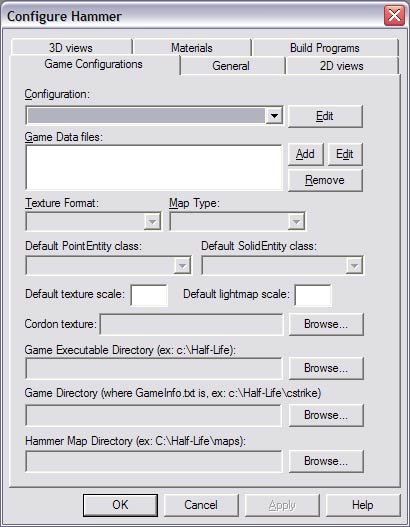
The Configure Hammer Dialog box should appear,
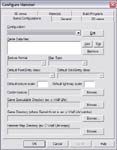 Under
the Game Configurations Tab, Configurations
Line, click edit, Under
the Game Configurations Tab, Configurations
Line, click edit,
When this window appears 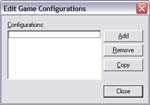 Click add.Then this window
appears
Click add.Then this window
appears
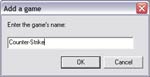 Type in the name Counter-Strike(or
the mod your working on Type in the name Counter-Strike(or
the mod your working on
(ex.HL2,Dod:Source)).When done press "OK".
Press Close on the edit game configuration
window.
When you get back to the configuration window, Press add
next to the Game Data Files box,
now add in the cstrike.fgd file (or
the mod your working on),press
open.
Now you should be back in the Game Configurations, Look down at find the
Default Texture Scale box, then type in 0.25
Next under the Game Executable Directory
line, browse to where your SDK folder is
(example: C:\Program Files\Valve\Steam\SteamApps\username\sourcesdk
)*username is your Logon name.
Next Game Directory line,
browse to the directory file, cstrike_sample_content
(example: C:\Program
Files\Steam\SteamApps\username\sourcesdk\cstrike_sample_content )
Next Under Hammer Map Directory
, Again browse to the proper folder cstrike_sample_content\maps
(example:
C:\Program Files\Valve\Steam\SteamApps\username\sourcesdk\cstrike_sample_content\maps
)
Next Section: Click
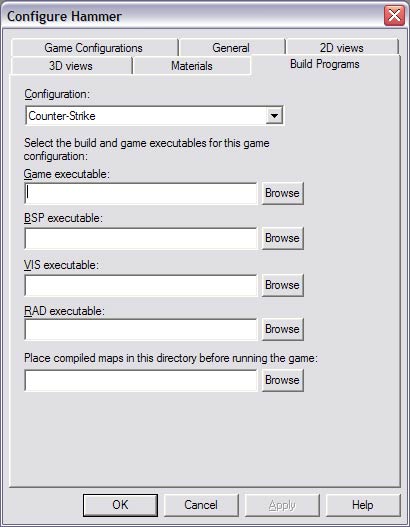
on the Build Programs Tab
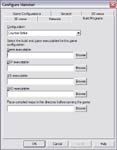 The Window looks like this.
For now leave the Game Executable blank
(problem with hammer running maps).
For BSP executable, enter:
C:\Program Files\Valve\Steam\SteamApps\username\sourcesdk\bin\vbsp.exe
For VIS executable, enter:
C:\Program Files\Valve\Steam\SteamApps\username\sourcesdk\bin\vvis.exe
For RAD executable, enter:
C:\Program Files\Valve\Steam\SteamApps\username\sourcesdk\bin\vrad.exe
For Place compiled maps in this directory before running the game, enter:
C:\Program Files\Valve\Steam\SteamApps\username\sourcesdk\cstrike_sample_content\maps
Press Ok and Hammer is now ready for use.
***Running
Compiled Maps***
*note from valve*
There
is a known issue of Hammer not being able to copy compiled maps to the
Counter-Strike directory and run the game from within Hammer. Until this
issue is resolved, check the don't run the game after compiling flag in
the Run Map dialog.
Follow these steps to run your compiled map after you've compiled it
in Hammer:
Compile your map with the Run Map feature in Hammer. Make sure don't
run the game after compiling is checked.
When the map has finished compiling, open the directory where you map
is saved. For example:
C:\Program Files\Valve\Steam\SteamApps\username\sourcesdk\cstrike_sample_content\maps
Where username is your Steam Login name.
Now copy the <mapname>.bsp file to the Counter-Strike maps directory
using Windows Explorer or a Command Prompt. For example:
C:\Program Files\Valve\Steam\SteamApps\username\counter-strike source\cstrike\maps
Run Counter-Strike via the Steam menu.
Open the console and type:
map <mapname>
Your map should load in the game.
|